
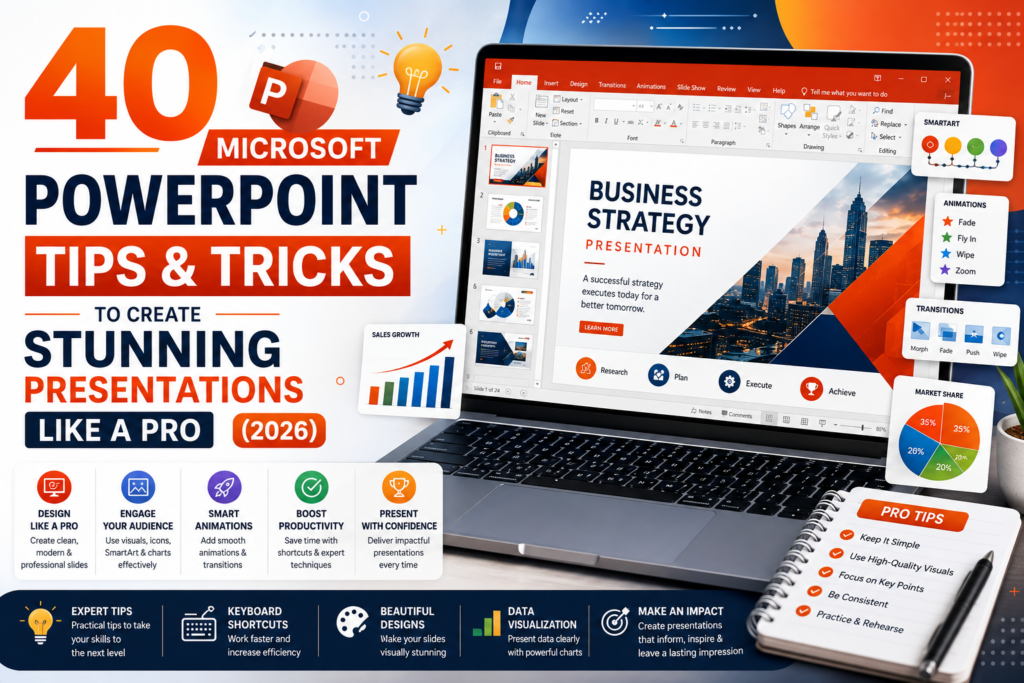
40 Microsoft PowerPoint Tips & Tricks to Create Stunning Presentations Like a Pro (2026)
Creating a presentation is easy, but creating one that captures attention, communicates ideas clearly, and leaves a lasting impression requires skill and thoughtful design. Microsoft PowerPoint offers hundreds of features that can help you build professional presentations, yet many users only scratch the surface of what the software can do.
Whether you’re presenting a business proposal, delivering a classroom lecture, pitching an idea to investors, or sharing research findings, mastering PowerPoint tips and tricks will help you design slides that are visually appealing, easy to understand, and memorable.
This guide shares 40 practical PowerPoint tips and techniques to help beginners and professionals create presentations like experts.
Table of Contents
- Why Good Presentation Design Matters
- 40 PowerPoint Tips & Tricks
- Essential Keyboard Shortcuts
- Common Presentation Mistakes
- FAQs
- Conclusion
Why Good Presentation Design Matters
A great presentation does more than display information—it tells a story. Well-designed slides help your audience understand complex ideas, stay engaged, and remember key points long after the presentation ends.
Benefits of creating professional presentations include:
- Better audience engagement
- Improved communication
- Increased confidence
- Stronger business impact
- Higher academic performance
- Professional appearance
40 Microsoft PowerPoint Tips & Tricks
1. Start with a Professional Theme
Choose a clean, modern theme that matches your topic. Avoid switching themes midway through the presentation.
2. Use Large Fonts
Keep text readable by using at least:
- 24 pt for body text
- 32–40 pt for headings
3. Limit Text on Each Slide
Use short bullet points instead of long paragraphs.
Remember the 6×6 Rule:
- Maximum 6 bullet points
- Maximum 6 words per bullet (when possible)
4. Maintain Consistent Colors
Use only two or three primary colors throughout your presentation.
Consistency creates a polished look.
5. Choose Professional Fonts
Recommended fonts:
- Aptos
- Calibri
- Arial
- Segoe UI
- Verdana
Avoid decorative fonts for business presentations.
6. Use High-Quality Images
Blurry or stretched images reduce professionalism.
Always use high-resolution visuals.
7. Replace Text with Icons
Icons communicate ideas faster than paragraphs.
PowerPoint includes thousands of built-in icons.
8. Use SmartArt
Convert ordinary bullet lists into attractive diagrams.
SmartArt is perfect for:
- Processes
- Timelines
- Hierarchies
- Workflows
9. Keep Plenty of White Space
Crowded slides overwhelm viewers.
Leave enough empty space to improve readability.
10. Align Objects Properly
Use PowerPoint’s alignment tools to keep text boxes, images, and charts perfectly aligned.
11. Use Slide Master
Instead of formatting every slide individually, customize the Slide Master to maintain consistency throughout the presentation.
12. Add Charts Instead of Tables
Charts are easier to understand than large tables of numbers.
Use:
- Pie Charts
- Bar Charts
- Line Charts
- Column Charts
13. Use Morph Transition
Morph creates smooth professional animations between slides.
It’s one of PowerPoint’s most powerful transition effects.
14. Don’t Overuse Animations
Animations should support your presentation—not distract from it.
Simple effects like Fade and Appear are often the best choice.
15. Use Section Headings
Break long presentations into sections using title slides.
This helps audiences follow your structure.
16. Keep Branding Consistent
If presenting for a company, use:
- Company colors
- Logo
- Fonts
- Style
17. Compress Images
Large images increase file size.
Compress pictures before sharing presentations.
18. Add Speaker Notes
Use the Notes pane to add reminders visible only to you during Presenter View.
19. Use Presenter View
Presenter View displays:
- Current slide
- Next slide
- Notes
- Timer
Your audience sees only the presentation.
20. Practice Timing
Rehearse your presentation to ensure you stay within your allotted time.
21. Use Videos Carefully
Videos can increase engagement but should support—not replace—your presentation.
22. Insert Screen Recordings
PowerPoint can record your screen for software demonstrations and tutorials.
23. Use Zoom for Interactive Navigation
PowerPoint Zoom allows non-linear presentations where you can jump between sections smoothly.
24. Keep Animations Consistent
Choose one or two animation styles for the entire presentation.
25. Avoid Reading Slides
Slides should highlight key ideas while you provide the explanation.
26. Use Contrast
Dark text on light backgrounds—or light text on dark backgrounds—improves readability.
27. Simplify Data
Instead of displaying every number, highlight only the most important insights.
28. Use Visual Hierarchy
Guide attention using:
- Font size
- Color
- Bold text
- Position
29. Keep Transitions Fast
Transitions should generally last less than one second.
30. Use Gridlines
Gridlines help position elements accurately.
31. Duplicate Similar Slides
Save time by duplicating existing slides instead of recreating layouts.
32. Group Objects
Select multiple elements and group them to move or resize everything together.
33. Use Keyboard Shortcuts
Learning shortcuts dramatically speeds up slide creation.
34. Check Accessibility
Ensure color contrast, readable fonts, and image descriptions for all audiences.
35. Preview Before Presenting
Always review your presentation in Slide Show mode.
36. Save Multiple Versions
Keep backup copies before making major edits.
37. Export as PDF
Sharing presentations as PDFs preserves formatting across devices.
38. Collaborate Using OneDrive
Microsoft 365 allows multiple users to edit presentations simultaneously.
39. Proofread Carefully
Grammar mistakes reduce credibility.
Review every slide before presenting.
40. End with a Strong Call to Action
Finish your presentation with:
- Key takeaway
- Summary
- Contact information
- Questions slide
A strong ending leaves a lasting impression.
Essential Keyboard Shortcuts
| Shortcut | Function |
|---|---|
| Ctrl + M | New Slide |
| Ctrl + D | Duplicate Slide |
| Ctrl + G | Group Objects |
| Ctrl + Shift + G | Ungroup Objects |
| Ctrl + K | Insert Hyperlink |
| Ctrl + C | Copy |
| Ctrl + V | Paste |
| Ctrl + Z | Undo |
| Ctrl + Y | Redo |
| F5 | Start Slide Show |
| Shift + F5 | Start from Current Slide |
| Esc | End Presentation |
Common Mistakes to Avoid
Many presenters unintentionally reduce the effectiveness of their slides. Avoid these common mistakes:
- Too much text on slides
- Using too many colors
- Excessive animations
- Low-quality images
- Tiny font sizes
- Poor alignment
- Reading directly from slides
- Overcrowded layouts
- Inconsistent formatting
- Skipping rehearsal
Frequently Asked Questions
What is the best font for PowerPoint?
Professional fonts like Aptos, Calibri, Arial, and Segoe UI are excellent choices because they are clean and easy to read.
How many slides should a presentation include?
There is no fixed number. Focus on communicating your message clearly rather than reaching a certain slide count.
Are animations necessary?
No. Use animations only when they improve understanding or emphasize important points.
Which transition is best?
Fade and Morph are among the most popular because they look modern and professional.
Can PowerPoint be used for business presentations?
Absolutely. PowerPoint is one of the world’s leading tools for business meetings, training sessions, marketing pitches, and conferences.
Conclusion
Microsoft PowerPoint is much more than a slide creation tool—it is a platform for communicating ideas visually and effectively. By applying these tips and tricks, you can transform ordinary presentations into engaging, professional experiences that capture attention and leave a lasting impression.
Focus on clean layouts, consistent design, readable typography, meaningful visuals, and thoughtful animations. With regular practice and attention to detail, you’ll develop the skills needed to create presentations that stand out in classrooms, offices, conferences, and beyond.
For more PowerPoint tutorials, design tips, and downloadable resources, visit Zenorow.com and continue improving your Microsoft Office expertise.
Leave a Reply