
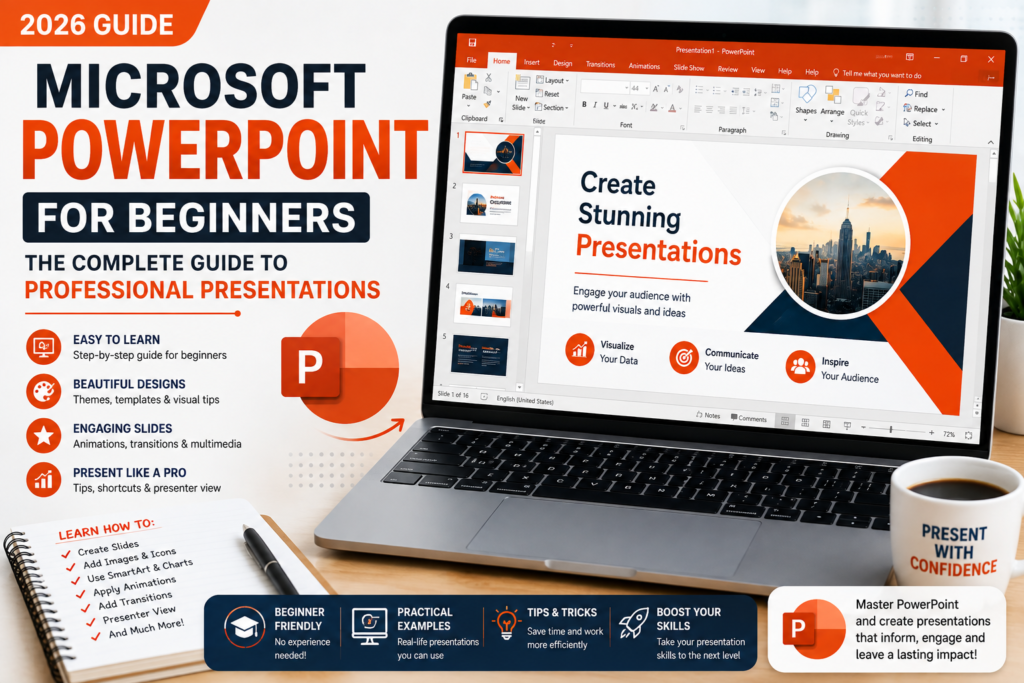
Microsoft PowerPoint for Beginners: The Complete Guide to Professional Presentations (2026)
Microsoft PowerPoint is one of the world’s most popular presentation software applications. Whether you’re a student preparing a classroom project, a teacher delivering lessons, a business professional presenting reports, or an entrepreneur pitching ideas, PowerPoint provides everything you need to create engaging and visually appealing presentations.
Modern presentations are much more than simple slides filled with text. Today’s PowerPoint allows users to combine images, videos, charts, animations, icons, SmartArt, transitions, and multimedia into professional presentations that effectively communicate ideas.
If you’re completely new to Microsoft PowerPoint, this guide will teach you everything you need to know—from creating your first presentation to designing slides that impress your audience.
Table of Contents
- What is Microsoft PowerPoint?
- Why Learn PowerPoint?
- Understanding the Interface
- Creating Your First Presentation
- Working with Slides
- Formatting Text
- Themes and Templates
- Images and Icons
- SmartArt
- Charts
- Animations
- Slide Transitions
- Presenter View
- Keyboard Shortcuts
- Beginner Tips
- FAQs
- Conclusion
What is Microsoft PowerPoint?
Microsoft PowerPoint is a presentation software developed by Microsoft as part of the Microsoft Office and Microsoft 365 suite. It enables users to create slide-based presentations containing text, graphics, videos, charts, animations, and other multimedia elements.
PowerPoint is commonly used for:
- Business meetings
- Educational lectures
- School assignments
- Marketing presentations
- Product demonstrations
- Project reports
- Training sessions
- Conferences
- Seminars
- Portfolio presentations
Its versatility makes it one of the most valuable productivity tools for both personal and professional use.
Why Learn Microsoft PowerPoint?
Strong presentation skills are essential in today’s academic and professional environments. Learning PowerPoint helps you communicate ideas clearly and confidently.
Some key benefits include:
- Create professional presentations quickly.
- Improve communication skills.
- Present data visually using charts and graphics.
- Enhance audience engagement with animations.
- Collaborate easily with team members.
- Build confidence during presentations.
- Increase career opportunities.
PowerPoint is widely used across industries, making it an important digital skill.
Understanding the PowerPoint Interface
When you open Microsoft PowerPoint, you’ll see several important areas.
Title Bar
Displays the presentation name.
Quick Access Toolbar
Provides shortcuts for commonly used commands like Save, Undo, and Redo.
Ribbon
The Ribbon organizes features into tabs, including:
- Home
- Insert
- Design
- Transitions
- Animations
- Slide Show
- Review
- View
Slide Pane
Shows all presentation slides.
Workspace
The main editing area where you design slides.
Notes Pane
Allows presenters to add speaking notes that remain hidden from the audience.
Creating Your First Presentation
Creating a presentation is simple.
- Open Microsoft PowerPoint.
- Click Blank Presentation.
- Choose a theme.
- Add a title slide.
- Insert additional slides.
- Save your presentation using Ctrl + S.
Working with Slides
Slides are the building blocks of every presentation.
You can:
- Add new slides.
- Duplicate slides.
- Delete slides.
- Rearrange slides.
- Hide slides.
- Change slide layouts.
Organizing your slides properly helps create a logical presentation flow.
Choosing the Right Theme
PowerPoint includes professionally designed themes that instantly improve your presentation’s appearance.
A good theme provides:
- Consistent colors
- Matching fonts
- Balanced layouts
- Professional design
Avoid switching themes repeatedly throughout the presentation.
Formatting Text
Readable text is essential for effective presentations.
Best practices include:
- Use large font sizes (24 pt or larger).
- Limit text on each slide.
- Use professional fonts like Aptos, Calibri, or Arial.
- Highlight important points with bold formatting.
- Maintain consistent font styles throughout the presentation.
Remember, slides should support your speech—not replace it.
Inserting Images
Visuals make presentations more engaging.
You can insert:
- Photos
- Screenshots
- Icons
- Illustrations
- Stock images
Use high-quality images that relate directly to your content.
Using Icons
Microsoft PowerPoint includes thousands of built-in icons.
Icons help simplify complex ideas and improve visual communication.
Examples include:
- Business icons
- Education icons
- Technology icons
- Finance icons
- Medical icons
SmartArt Graphics
SmartArt transforms plain text into professional diagrams.
Popular SmartArt layouts include:
- Process
- Hierarchy
- Cycle
- Relationship
- Pyramid
- Matrix
SmartArt is excellent for explaining workflows and organizational structures.
Adding Charts
Charts help present numerical information clearly.
PowerPoint supports:
- Bar Charts
- Pie Charts
- Line Charts
- Column Charts
- Area Charts
Use charts instead of large tables whenever possible to improve audience understanding.
Animations
Animations control how objects appear on a slide.
Common animation effects include:
- Fade
- Fly In
- Wipe
- Zoom
- Appear
Use animations sparingly. Too many effects can distract your audience.
Slide Transitions
Transitions control how one slide changes to the next.
Popular transitions include:
- Fade
- Push
- Morph
- Wipe
- Split
Choose one or two consistent transitions throughout your presentation for a polished look.
Presenter View
Presenter View is one of PowerPoint’s most useful features.
It allows presenters to see:
- Speaker notes
- Presentation timer
- Upcoming slides
- Current slide
- Navigation controls
Meanwhile, the audience only sees the presentation.
Essential Keyboard Shortcuts
| Shortcut | Function |
|---|---|
| Ctrl + N | New Presentation |
| Ctrl + O | Open Presentation |
| Ctrl + S | Save Presentation |
| Ctrl + M | New Slide |
| Ctrl + D | Duplicate Slide |
| Ctrl + C | Copy |
| Ctrl + V | Paste |
| Ctrl + X | Cut |
| Ctrl + Z | Undo |
| Ctrl + Y | Redo |
| F5 | Start Slide Show |
| Shift + F5 | Start from Current Slide |
| Esc | End Presentation |
| Ctrl + P |
Learning these shortcuts can significantly improve your presentation workflow.
Best Practices for Professional Presentations
Follow these tips to create presentations that leave a lasting impression:
- Keep slides clean and uncluttered.
- Use one consistent theme.
- Limit text to key points.
- Choose high-quality visuals.
- Use contrasting colors for readability.
- Maintain consistent fonts and spacing.
- Avoid excessive animations.
- Practice your presentation before delivering it.
- Use charts instead of large tables.
- Proofread every slide carefully.
Common Mistakes to Avoid
Many beginners make these mistakes:
- Adding too much text.
- Using too many fonts.
- Overusing animations.
- Choosing poor color combinations.
- Using low-resolution images.
- Reading slides word for word.
- Ignoring alignment and spacing.
Avoiding these mistakes will make your presentations look far more professional.
Frequently Asked Questions
Is Microsoft PowerPoint free?
PowerPoint is available through Microsoft 365 subscriptions, licensed Office editions, and a limited free web version with basic features.
Can I insert videos into PowerPoint?
Yes. You can insert videos from your computer or online sources to make presentations more engaging.
Which font is best for presentations?
Professional fonts such as Aptos, Calibri, Arial, and Segoe UI are excellent choices because they are easy to read.
How many slides should a presentation have?
There is no fixed number. Focus on covering your topic clearly rather than reaching a specific slide count.
Can I collaborate with others?
Yes. Microsoft PowerPoint supports real-time collaboration through Microsoft 365 and OneDrive.
Conclusion
Microsoft PowerPoint is a powerful presentation tool that helps users communicate ideas visually and effectively. By understanding the interface, choosing professional themes, using images and SmartArt, adding charts, and applying animations thoughtfully, beginners can quickly create presentations that are both informative and visually appealing.
As you gain experience, continue exploring advanced features such as Presenter View, Morph transitions, collaboration tools, and multimedia integration to take your presentations to the next level. Whether you’re presenting in a classroom, boardroom, or conference, mastering PowerPoint will help you deliver your message with confidence and professionalism.
For more Microsoft Office tutorials, practical guides, and downloadable resources, visit Zenorow.com and continue building your skills.
Leave a Reply