
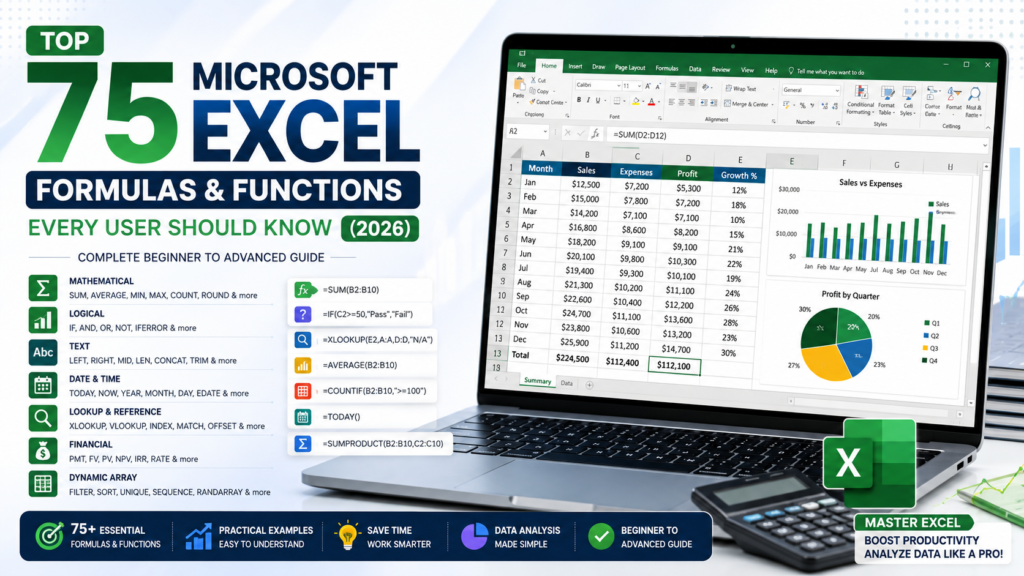
Top 75 Microsoft Excel Formulas and Functions Every User Should Know (2026)
Microsoft Excel is one of the most powerful tools for organizing, analyzing, and managing data. At the heart of Excel are formulas and functions, which allow users to perform calculations automatically, analyze large datasets, and make better decisions with minimal effort.
Whether you’re a student calculating grades, an accountant preparing financial reports, a business owner tracking sales, or an office professional managing data, learning Excel formulas is one of the fastest ways to improve your productivity.
In this comprehensive guide, you’ll discover the most useful Excel formulas and functions every beginner and professional should know in 2026.
Table of Contents
- What Are Excel Formulas?
- Formula Basics
- Mathematical Functions
- Statistical Functions
- Logical Functions
- Text Functions
- Date & Time Functions
- Lookup & Reference Functions
- Financial Functions
- Dynamic Array Functions
- Formula Tips
- FAQs
- Conclusion
What Are Excel Formulas?
An Excel formula is an expression that performs calculations using numbers, cell references, operators, and functions. Every formula begins with an equals sign (=).
For example:
=A1+B1This formula adds the values in cells A1 and B1.
Functions are predefined formulas that perform specific tasks, such as calculating averages, counting values, or searching for data.
Basic Mathematical Functions
These are the first formulas every Excel user should learn.
1. SUM
Adds numbers together.
Example:
=SUM(A1:A10)2. AVERAGE
Calculates the average.
=AVERAGE(B1:B20)3. MIN
Returns the smallest value.
=MIN(C1:C20)4. MAX
Returns the largest value.
=MAX(C1:C20)5. COUNT
Counts cells containing numbers.
=COUNT(A1:A100)6. COUNTA
Counts non-empty cells.
=COUNTA(A1:A100)7. COUNTBLANK
Counts empty cells.
=COUNTBLANK(A1:A100)8. PRODUCT
Multiplies numbers.
=PRODUCT(A1:A5)9. ROUND
Rounds numbers.
=ROUND(A1,2)10. ABS
Returns the absolute value.
=ABS(A1)Logical Functions
Logical functions help automate decision-making.
IF
=IF(A1>=50,"Pass","Fail")AND
Checks if all conditions are true.
=AND(A1>50,B1>60)OR
Checks if at least one condition is true.
=OR(A1>50,B1>60)NOT
Reverses logical values.
=NOT(A1>50)IFERROR
Returns a custom value instead of an error.
=IFERROR(A1/B1,"Invalid")Text Functions
Working with text becomes much easier using these formulas.
LEFT
Returns characters from the left.
=LEFT(A1,5)RIGHT
Returns characters from the right.
=RIGHT(A1,3)MID
Extracts text from the middle.
=MID(A1,3,6)LEN
Counts characters.
=LEN(A1)TRIM
Removes extra spaces.
=TRIM(A1)UPPER
Converts text to uppercase.
=UPPER(A1)LOWER
Converts text to lowercase.
=LOWER(A1)PROPER
Capitalizes each word.
=PROPER(A1)CONCAT
Combines text.
=CONCAT(A1," ",B1)TEXT
Formats numbers.
=TEXT(A1,"dd/mm/yyyy")Date & Time Functions
Excel handles dates efficiently.
Popular functions include:
- TODAY()
- NOW()
- YEAR()
- MONTH()
- DAY()
- WEEKDAY()
- EDATE()
- EOMONTH()
- DATEDIF()
- NETWORKDAYS()
Example:
=TODAY()Returns today’s date automatically.
Lookup & Reference Functions
These functions search and retrieve information.
XLOOKUP
The modern replacement for VLOOKUP.
=XLOOKUP(A2,D:D,E:E)VLOOKUP
Searches vertically.
=VLOOKUP(A2,D:F,2,FALSE)HLOOKUP
Searches horizontally.
INDEX
Returns a value based on position.
MATCH
Finds a position.
INDEX + MATCH
More flexible than VLOOKUP.
CHOOSE
Returns a selected value.
OFFSET
Returns a dynamic range.
INDIRECT
References text as a cell reference.
ADDRESS
Returns a cell address.
Statistical Functions
Useful for analyzing data.
Popular functions include:
- MEDIAN()
- MODE()
- LARGE()
- SMALL()
- RANK()
- PERCENTILE()
- QUARTILE()
- STDEV.P()
- VAR.P()
- FREQUENCY()
These functions are widely used in research, finance, and analytics.
Financial Functions
Excel provides many built-in financial formulas.
Examples include:
- PMT()
- FV()
- PV()
- NPV()
- IRR()
- RATE()
These help calculate:
- Loan payments
- Investments
- Interest
- Future value
- Net present value
Dynamic Array Functions
Modern Excel versions include powerful dynamic arrays.
Examples:
- FILTER()
- SORT()
- SORTBY()
- UNIQUE()
- SEQUENCE()
- RANDARRAY()
These functions automatically expand results into neighboring cells.
Formula Writing Tips
Follow these best practices:
- Always begin formulas with “=”.
- Use cell references instead of typing numbers repeatedly.
- Double-check parentheses.
- Keep formulas simple when possible.
- Name important ranges.
- Avoid hardcoding values.
- Test formulas before sharing workbooks.
- Use IFERROR to handle errors gracefully.
- Keep data organized.
- Document complex formulas with comments.
Essential Keyboard Shortcuts
| Shortcut | Function |
|---|---|
| F2 | Edit Cell |
| Alt + = | AutoSum |
| Ctrl + ` | Show Formulas |
| Ctrl + Shift + L | Filter Data |
| Ctrl + Arrow | Jump Between Data |
| Ctrl + Home | First Cell |
| Ctrl + End | Last Used Cell |
| Ctrl + Space | Select Column |
| Shift + Space | Select Row |
| Ctrl + Shift + “+” | Insert Cells |
Frequently Asked Questions
Which Excel formula should beginners learn first?
Start with SUM, AVERAGE, IF, COUNT, and MAX. These cover many everyday spreadsheet tasks.
Is XLOOKUP better than VLOOKUP?
Yes. XLOOKUP is more flexible, easier to use, and works in both directions, making it the preferred choice in modern versions of Excel.
Can I combine multiple formulas?
Absolutely. Combining functions like IF, SUM, INDEX, and MATCH allows you to solve more complex problems and automate workflows.
Why do Excel formulas show errors?
Errors can occur because of incorrect syntax, missing parentheses, invalid cell references, or incompatible data types. Using IFERROR can help display cleaner results.
Are Excel formulas useful outside finance?
Yes. Excel formulas are widely used in education, sales, marketing, human resources, engineering, healthcare, inventory management, and many other industries.
Conclusion
Mastering Microsoft Excel formulas and functions is one of the best ways to improve your productivity and analytical skills. Even learning a handful of essential functions like SUM, AVERAGE, IF, COUNT, and XLOOKUP can save significant time and reduce manual work.
As your confidence grows, you can explore advanced formulas, dynamic arrays, financial calculations, and data analysis techniques to unlock Excel’s full potential. With regular practice, these tools will help you build smarter spreadsheets, generate meaningful insights, and handle complex tasks with ease.
For more in-depth Microsoft Excel tutorials, practical examples, and downloadable resources, continue exploring Zenorow.com and take your Excel skills to the next level.
Leave a Reply