
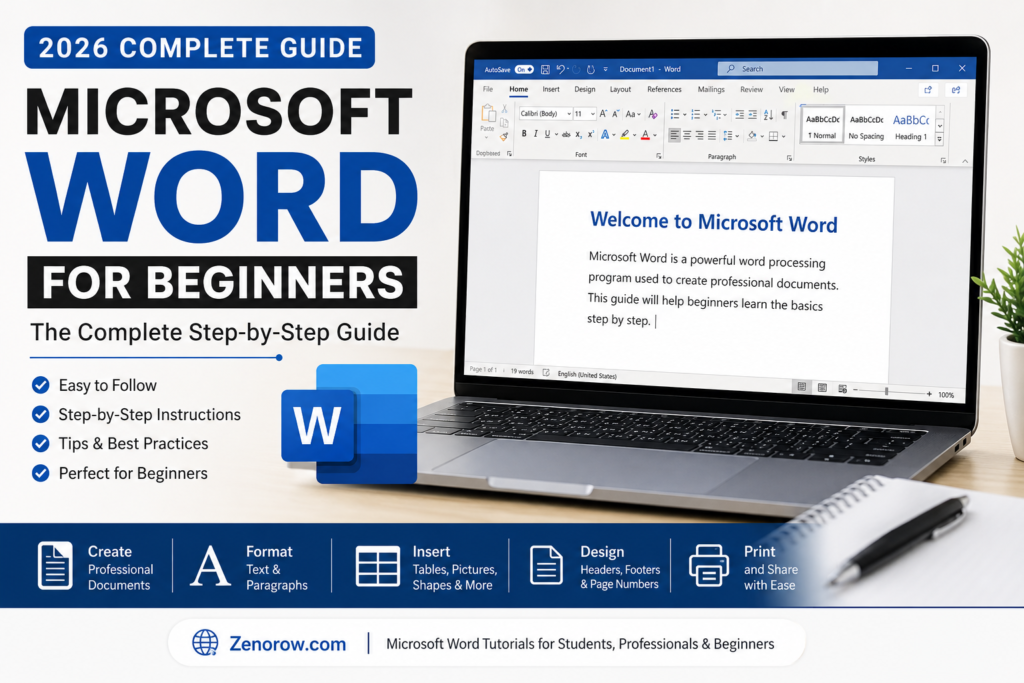
Microsoft Word for Beginners: The Complete Step-by-Step Guide (2026)
Microsoft Word is one of the world’s most popular word processing applications and is used daily by millions of students, professionals, teachers, businesses, and organizations. Whether you’re writing a school assignment, creating a professional resume, preparing business reports, designing brochures, or drafting official documents, Microsoft Word provides all the tools you need to create polished and professional content.
If you’re completely new to Microsoft Word, don’t worry. This beginner-friendly guide will teach you everything you need to know—from opening your first document to mastering essential formatting tools. By the end of this tutorial, you’ll have a solid understanding of Microsoft Word and the confidence to create professional-quality documents.
Table of Contents
- What is Microsoft Word?
- Why Learn Microsoft Word?
- Microsoft Word Interface Explained
- Creating Your First Document
- Saving Documents
- Opening Existing Documents
- Understanding the Ribbon
- Working with Text
- Formatting Text
- Paragraph Formatting
- Using Styles
- Page Layout
- Margins & Orientation
- Headers & Footers
- Page Numbers
- Tables
- Pictures & Graphics
- Shapes & Icons
- SmartArt
- Charts
- Hyperlinks
- Spell Check
- Find & Replace
- Printing Documents
- Keyboard Shortcuts
- Beginner Tips
- Frequently Asked Questions
- Conclusion
What is Microsoft Word?
Microsoft Word is a professional word-processing application developed by Microsoft as part of the Microsoft Office and Microsoft 365 suite. It enables users to create, edit, format, share, and print documents with ease.
People use Microsoft Word for:
- School assignments
- Business reports
- Resumes
- Cover letters
- Books
- Newsletters
- Contracts
- Certificates
- Meeting notes
- Project documentation
Its intuitive interface and powerful editing features make it suitable for beginners and professionals alike.
Why Learn Microsoft Word?
Learning Microsoft Word offers many advantages in both academic and professional environments.
Some key benefits include:
- Improved productivity
- Professional document creation
- Better organization
- Easy collaboration
- Cloud synchronization through OneDrive
- Compatibility with most workplaces
- Increased employment opportunities
- Time-saving automation features
Microsoft Word is considered one of the most valuable digital skills employers expect today.
Understanding the Microsoft Word Interface
When you first launch Microsoft Word, you’ll see several important sections.
Title Bar
Located at the top of the window, the Title Bar displays the name of the current document.
Quick Access Toolbar
This toolbar provides quick access to commonly used commands such as:
- Save
- Undo
- Redo
You can customize it according to your preferences.
Ribbon
The Ribbon is the main command center of Microsoft Word.
It contains tabs including:
- Home
- Insert
- Design
- Layout
- References
- Mailings
- Review
- View
- Help
Each tab contains related tools.
Document Area
This is where you type and edit your content.
Status Bar
The Status Bar displays useful information including:
- Word Count
- Current Page
- Language
- Zoom Level
Creating Your First Document
Creating a new document is simple.
Step 1
Open Microsoft Word.
Step 2
Select Blank Document.
Step 3
Begin typing.
That’s it!
You have successfully created your first Word document.
Saving Your Document
Saving prevents your work from being lost.
Use:
File → Save
or simply press
Ctrl + S
Choose:
- File name
- Save location
- File type
The most common format is:
.docx
Opening Existing Documents
To open a previously saved file:
File → Open
Browse to the desired location.
Select your document.
Click Open.
Working with Text
Typing in Word is straightforward.
You can:
- Delete text
- Copy text
- Cut text
- Paste text
- Move paragraphs
- Select multiple lines
Word automatically wraps text to the next line.
Text Formatting
Formatting improves readability.
Common formatting includes:
Font
Choose different fonts such as:
- Calibri
- Arial
- Times New Roman
- Aptos
Font Size
Common sizes include:
- 11
- 12
- 14
- 16
- 18
- 24
Bold
Shortcut:
Ctrl + B
Italic
Shortcut:
Ctrl + I
Underline
Shortcut:
Ctrl + U
Text Color
Highlight important words using different colors.
Highlight
Highlight important information similar to a marker.
Paragraph Formatting
Professional documents require proper paragraph formatting.
You can adjust:
- Alignment
- Line spacing
- Paragraph spacing
- Indentation
- Bullets
- Numbering
Alignment options include:
- Left
- Center
- Right
- Justify
Using Styles
Styles allow consistent formatting throughout the document.
Popular styles include:
- Heading 1
- Heading 2
- Heading 3
- Normal
- Title
- Subtitle
Using styles also helps create an automatic Table of Contents.
Page Layout
The Layout tab controls the appearance of your pages.
You can modify:
- Margins
- Orientation
- Columns
- Paper Size
- Page Breaks
Margins
Margins determine the empty space around your page.
Common options:
- Normal
- Narrow
- Moderate
- Wide
Portrait vs Landscape
Portrait
Ideal for reports.
Landscape
Ideal for wide tables and spreadsheets.
Headers and Footers
Headers appear at the top.
Footers appear at the bottom.
They usually contain:
- Company name
- Page numbers
- Document title
- Dates
Adding Page Numbers
Insert → Page Number
Choose:
- Top
- Bottom
- Current Position
Perfect for reports.
Working with Tables
Tables organize information neatly.
Insert → Table
Choose the number of rows and columns.
Tables are ideal for:
- Price lists
- Timetables
- Reports
- Attendance sheets
Inserting Pictures
Insert → Pictures
You can insert:
- Local images
- Online pictures
- Stock photos
Resize images using corner handles.
Using Shapes
Word provides many shapes including:
- Circles
- Rectangles
- Arrows
- Stars
- Flowcharts
Useful for diagrams.
SmartArt
SmartArt creates professional diagrams.
Popular categories:
- Process
- Cycle
- Hierarchy
- Relationship
- Pyramid
Charts
Insert → Chart
Available charts include:
- Bar
- Pie
- Line
- Column
- Area
Charts help visualize data.
Hyperlinks
Insert → Link
Hyperlinks can connect to:
- Websites
- Email addresses
- Other documents
- Specific headings
Spell Check
Microsoft Word automatically checks:
- Spelling
- Grammar
- Writing suggestions
Use:
F7
to run a complete spelling check.
Find & Replace
Shortcut:
Ctrl + H
Useful for replacing repeated words instantly.
Printing Documents
Before printing:
Review:
- Margins
- Orientation
- Paper Size
- Page Numbers
Then:
File → Print
Preview your document before printing.
Essential Keyboard Shortcuts
| Shortcut | Function |
|---|---|
| Ctrl + C | Copy |
| Ctrl + V | Paste |
| Ctrl + X | Cut |
| Ctrl + Z | Undo |
| Ctrl + Y | Redo |
| Ctrl + A | Select All |
| Ctrl + S | Save |
| Ctrl + P | |
| Ctrl + F | Find |
| Ctrl + H | Replace |
| Ctrl + B | Bold |
| Ctrl + I | Italic |
| Ctrl + U | Underline |
Learning these shortcuts can significantly improve your productivity.
Beginner Tips
If you’re just starting with Microsoft Word, keep these tips in mind:
- Save your work frequently.
- Use built-in Styles instead of manual formatting.
- Preview documents before printing.
- Keep fonts consistent throughout the document.
- Use spell check before sharing your work.
- Organize content with headings.
- Insert page numbers in long documents.
- Practice keyboard shortcuts daily.
- Use templates for faster document creation.
- Back up important files using OneDrive.
Frequently Asked Questions
Is Microsoft Word free?
Microsoft Word is available through Microsoft 365 subscriptions, licensed Office editions, and limited free web-based versions with fewer features.
Which file format should I save?
The recommended format is:
.docx
Can I open Word documents on mobile?
Yes.
Microsoft Word is available for Android, iPhone, and tablets.
Is Microsoft Word difficult to learn?
No.
Most beginners become comfortable with the basic features after a few days of practice.
Can Microsoft Word create resumes?
Absolutely.
Microsoft Word includes built-in resume templates and professional formatting tools.
Final Thoughts
Microsoft Word is one of the most valuable productivity tools you can learn. From writing simple notes to creating professional reports, resumes, proposals, and business documents, it offers powerful features that make document creation faster and more efficient.
As a beginner, focus on mastering the fundamentals—creating documents, formatting text, using styles, inserting tables and images, and learning essential keyboard shortcuts. With consistent practice, you’ll quickly build the confidence to create polished, professional documents for school, work, or personal projects.
Continue exploring more Microsoft Word tutorials on Zenorow.com, where you’ll find in-depth guides, practical tips, downloadable templates, and productivity resources designed to help you become a Microsoft Office expert.
Leave a Reply