
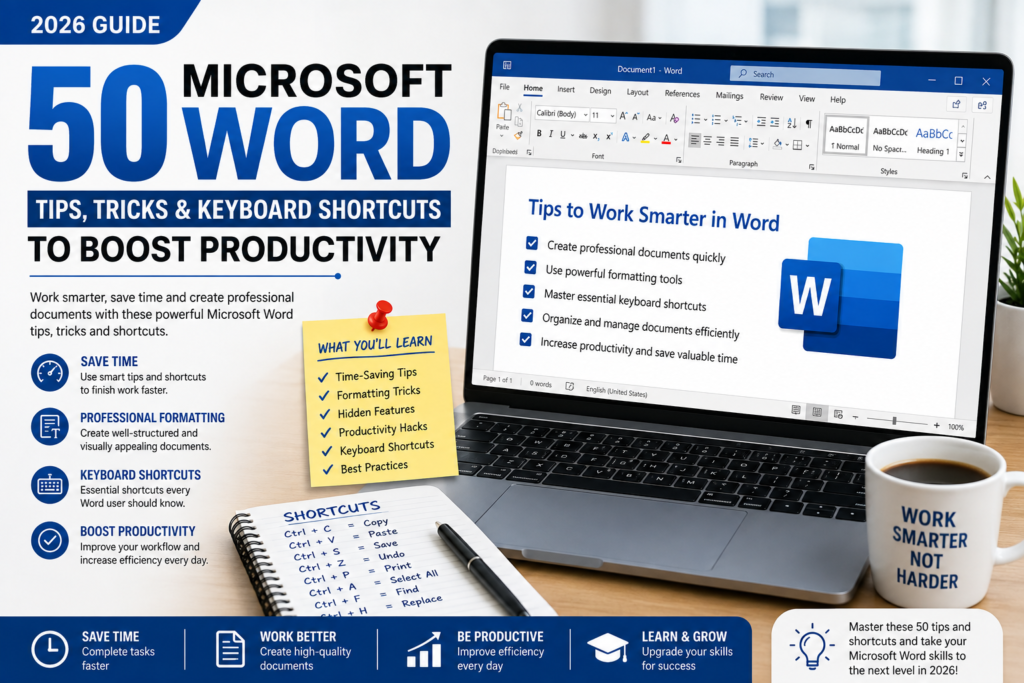
50 Microsoft Word Tips, Tricks & Keyboard Shortcuts to Boost Productivity (2026)
Microsoft Word is one of the most widely used productivity applications in the world. From students preparing assignments to professionals creating business reports, resumes, contracts, and presentations, Word has become an essential tool for everyday work.
While most users know the basics of typing and formatting text, many powerful features remain underused. Learning a few smart tips and keyboard shortcuts can significantly improve your workflow, reduce repetitive tasks, and help you create more professional documents in less time.
In this guide, you’ll discover practical Microsoft Word tips, useful shortcuts, and productivity techniques that every beginner and advanced user should know.
Why Learn Microsoft Word Productivity Tips?
Working smarter is more valuable than simply working harder. Microsoft Word includes built-in features that can automate repetitive tasks, improve document consistency, and save valuable time.
Some key benefits include:
- Faster document creation
- Professional formatting
- Improved organization
- Better collaboration
- Increased workplace productivity
- Reduced editing time
- Easier document management
Whether you’re using Word for school, work, or personal projects, mastering these features will make your experience much more efficient.
1. Save Your Work Frequently
The simplest productivity habit is saving your document regularly. Press Ctrl + S every few minutes to prevent losing your work due to unexpected crashes or power outages.
If you’re using Microsoft 365, enable AutoSave to automatically save your document to OneDrive.
2. Master Essential Keyboard Shortcuts
Keyboard shortcuts eliminate unnecessary mouse movements and speed up your workflow.
Some of the most useful shortcuts include:
| Shortcut | Function |
|---|---|
| Ctrl + C | Copy |
| Ctrl + V | Paste |
| Ctrl + X | Cut |
| Ctrl + Z | Undo |
| Ctrl + Y | Redo |
| Ctrl + A | Select All |
| Ctrl + S | Save |
| Ctrl + P | |
| Ctrl + F | Find |
| Ctrl + H | Replace |
| Ctrl + B | Bold |
| Ctrl + I | Italic |
| Ctrl + U | Underline |
| Ctrl + K | Insert Hyperlink |
| Ctrl + Enter | Insert Page Break |
Learning these shortcuts can save several minutes every day, adding up to hours over time.
3. Use Styles Instead of Manual Formatting
Rather than manually changing fonts, sizes, and colors throughout your document, use the built-in Styles feature under the Home tab.
Styles help you:
- Maintain consistent formatting
- Create professional-looking documents
- Generate automatic Tables of Contents
- Quickly update document formatting
4. Use Format Painter
If you’ve formatted one section exactly how you want it, there’s no need to repeat those steps manually.
Click Format Painter, then select the text you want to apply the same formatting to. It’s one of the easiest ways to keep documents visually consistent.
5. Use Find and Replace
Editing long documents manually can take a lot of time.
Press Ctrl + H to open Find and Replace.
For example, if you need to change every instance of “Office 2021” to “Microsoft 365,” Word can update them all in seconds.
6. Organize Documents with Headings
Using Heading 1, Heading 2, and Heading 3 styles makes large documents easier to navigate.
Benefits include:
- Automatic navigation pane
- Easy table of contents creation
- Better document structure
- Improved readability
7. Insert Page Breaks Properly
Avoid pressing the Enter key multiple times to move to a new page.
Instead, press:
Ctrl + Enter
This inserts a proper page break and keeps your formatting intact.
8. Check Spelling and Grammar
Always review your document before sharing it.
Press F7 to run Word’s built-in spelling and grammar checker.
This helps eliminate common mistakes and improves the professionalism of your work.
9. Use Templates
Microsoft Word includes hundreds of professionally designed templates for:
- Resumes
- Business letters
- Reports
- Newsletters
- Flyers
- Certificates
- Calendars
Templates save time while ensuring your documents have a polished appearance.
10. Add Professional Tables
Tables help organize information clearly.
They’re perfect for:
- Price lists
- Schedules
- Attendance sheets
- Reports
- Financial data
A well-designed table makes complex information easier to understand.
11. Insert Pictures Correctly
Visual content makes documents more engaging.
Use Insert → Pictures to add images and resize them using the corner handles to maintain proper proportions.
Remember to compress images if you’re creating a document that will be shared online.
12. Use SmartArt
SmartArt transforms simple lists into attractive diagrams.
Popular SmartArt categories include:
- Process
- Hierarchy
- Cycle
- Relationship
- Pyramid
These graphics are excellent for presentations, reports, and educational materials.
13. Work with Headers and Footers
Headers and footers allow you to display consistent information on every page.
Common uses include:
- Company name
- Document title
- Author name
- Page numbers
- Dates
This is especially useful for professional reports and academic assignments.
14. Use the Navigation Pane
When working with lengthy documents, scrolling can become frustrating.
Enable the Navigation Pane from the View tab.
It allows you to jump instantly between headings and sections.
15. Collaborate with Comments
Microsoft Word’s commenting feature is ideal for teamwork.
Instead of changing someone else’s work directly, leave comments that explain your suggestions.
This keeps the editing process organized and transparent.
16. Protect Important Documents
If you’re sharing confidential files, Word allows you to:
- Add passwords
- Restrict editing
- Prevent copying
- Mark documents as final
These features help keep sensitive information secure.
17. Insert Hyperlinks
Hyperlinks allow readers to access websites, email addresses, or other sections of your document with a single click.
Use Ctrl + K to quickly create hyperlinks.
18. Zoom for Better Editing
Hold the Ctrl key while scrolling your mouse wheel to zoom in or out.
Zooming in helps with detailed editing, while zooming out provides a better overview of your document layout.
19. Use Bullet and Numbered Lists
Lists improve readability and help organize information.
Instead of writing long paragraphs, break content into bullet points whenever appropriate.
This makes documents easier to scan and understand.
20. Print Preview Before Printing
Always review your document before sending it to the printer.
Check:
- Margins
- Orientation
- Page numbers
- Images
- Tables
- Headers
- Footers
A quick preview can prevent costly printing mistakes.
Additional Productivity Tips
Here are more simple habits that can improve your Microsoft Word experience:
- Keep font styles consistent throughout the document.
- Use one or two professional fonts such as Aptos, Calibri, or Arial.
- Avoid excessive colors and decorations.
- Use white space effectively.
- Insert page numbers in multi-page documents.
- Create reusable templates for frequently used documents.
- Learn new keyboard shortcuts every week.
- Store important files in OneDrive for automatic backup.
- Use section breaks for better document organization.
- Review documents before sharing them.
Best Microsoft Word Shortcuts Every User Should Remember
| Shortcut | Purpose |
|---|---|
| Ctrl + N | New Document |
| Ctrl + O | Open Document |
| Ctrl + W | Close Document |
| Ctrl + Shift + C | Copy Formatting |
| Ctrl + Shift + V | Paste Formatting |
| Ctrl + L | Align Left |
| Ctrl + E | Center Text |
| Ctrl + R | Align Right |
| Ctrl + J | Justify Text |
| Shift + F3 | Change Text Case |
Frequently Asked Questions
Is Microsoft Word difficult to learn?
No. Microsoft Word is beginner-friendly, and most users can learn the basics within a few hours of practice.
Which version of Microsoft Word should I use?
The latest Microsoft 365 version provides the newest features, cloud integration, and regular updates, but older versions still include most essential tools.
What is the most useful Microsoft Word shortcut?
Ctrl + S is one of the most important shortcuts because it saves your work instantly.
Can Microsoft Word be used for professional documents?
Yes. Microsoft Word is widely used for resumes, business proposals, reports, contracts, letters, manuals, and many other professional documents.
Are keyboard shortcuts worth learning?
Absolutely. Even learning 10–15 shortcuts can noticeably improve your speed and productivity.
Conclusion
Microsoft Word offers far more than basic document editing. By mastering keyboard shortcuts, using built-in formatting tools, organizing content with styles, and taking advantage of features like Find and Replace, Navigation Pane, SmartArt, and Templates, you can create professional-quality documents while saving significant time.
Start by practicing a few shortcuts each day and gradually incorporate more advanced features into your workflow. Over time, these small improvements will make a big difference in how efficiently you work.
Whether you’re writing assignments, creating reports, preparing resumes, or managing business documents, Microsoft Word remains one of the most valuable productivity tools available. Continue exploring tutorials and guides on Zenorow.com to further develop your Microsoft Office skills and become a more confident, productive user.
SEO Details
SEO Title: 50 Microsoft Word Tips, Tricks & Keyboard Shortcuts to Boost Productivity (2026)
Focus Keyword: Microsoft Word Tips and Tricks
Meta Description: Discover 50 Microsoft Word tips, tricks, and keyboard shortcuts to improve productivity. Learn time-saving techniques, formatting tools, and professional workflows with this beginner-friendly 2026 guide.
Slug: microsoft-word-tips-tricks-keyboard-shortcuts-2026
Suggested Featured Image Alt Text: Microsoft Word productivity tips and keyboard shortcuts guide displayed on a modern laptop with document editing tools.
Leave a Reply